

Custom IDs & attributes
Custom IDs & attributes
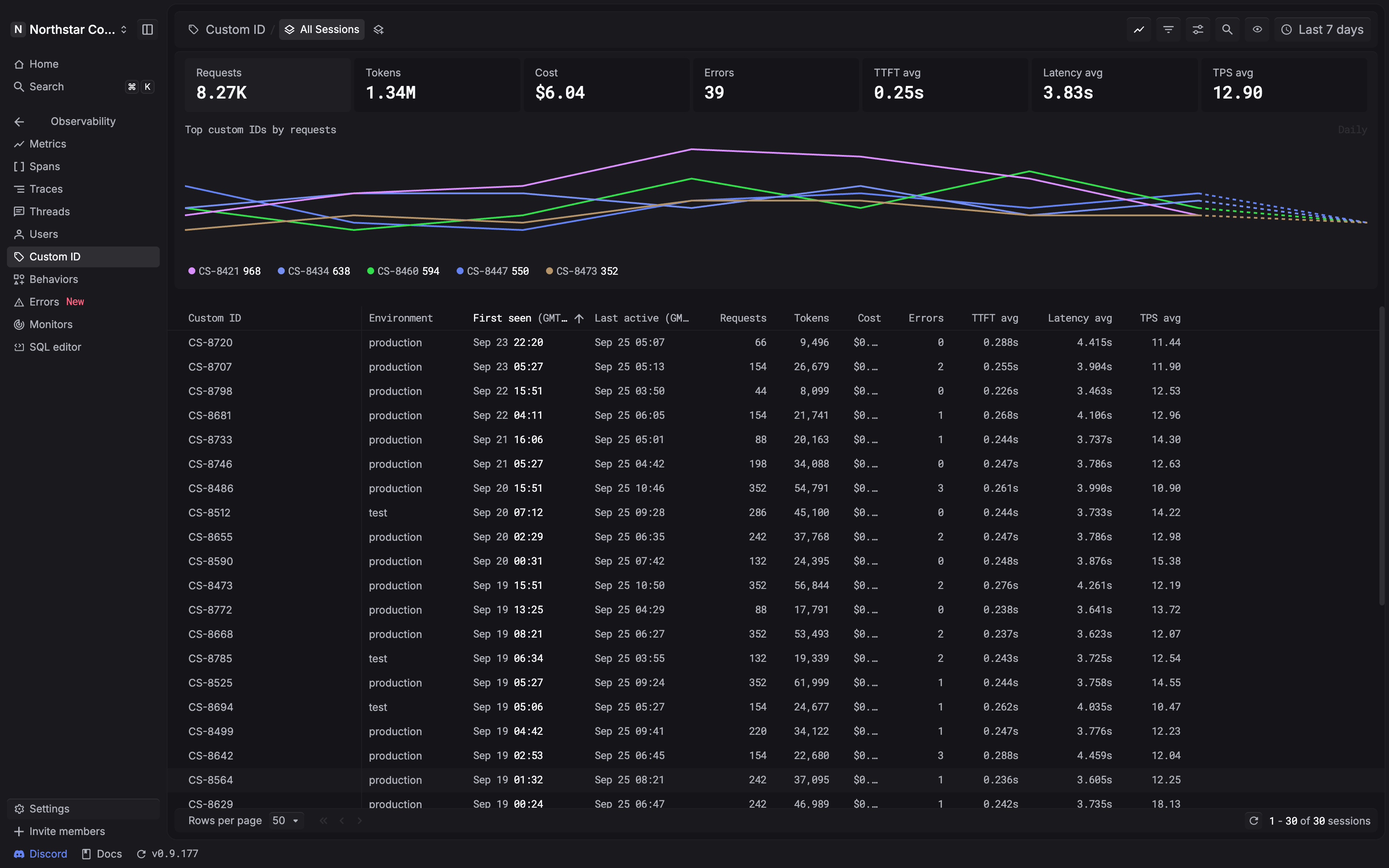
Use a Custom ID to connect AI requests to an application record, such as a
support ticket, order, or document. Reuse the same custom_identifier on each
related request to review its combined usage on the
Custom ID page.
Add metadata to describe the activity with properties such as feature or
team. These properties provide context when inspecting and filtering the
recorded spans.
Choose the right field
One request can include all four. For example, a support ticket can belong to one customer and contain several conversations. The ticket ID connects the activity, while the thread ID identifies a particular conversation.
Record a Custom ID and attributes
Choose the example that matches how your application sends data to Respan.
Gateway
Python tracing SDK
Complete the OpenAI SDK gateway setup, then pass the
fields in extra_body:
See Respan params & metadata for other gateway fields.
Review activity by Custom ID
- Open the Custom ID page.
- Choose a time range that includes the requests you want to investigate.
- Find the Custom ID you sent, such as
CS-1042. - Compare its cost, tokens, and request count to understand the activity associated with that identifier.
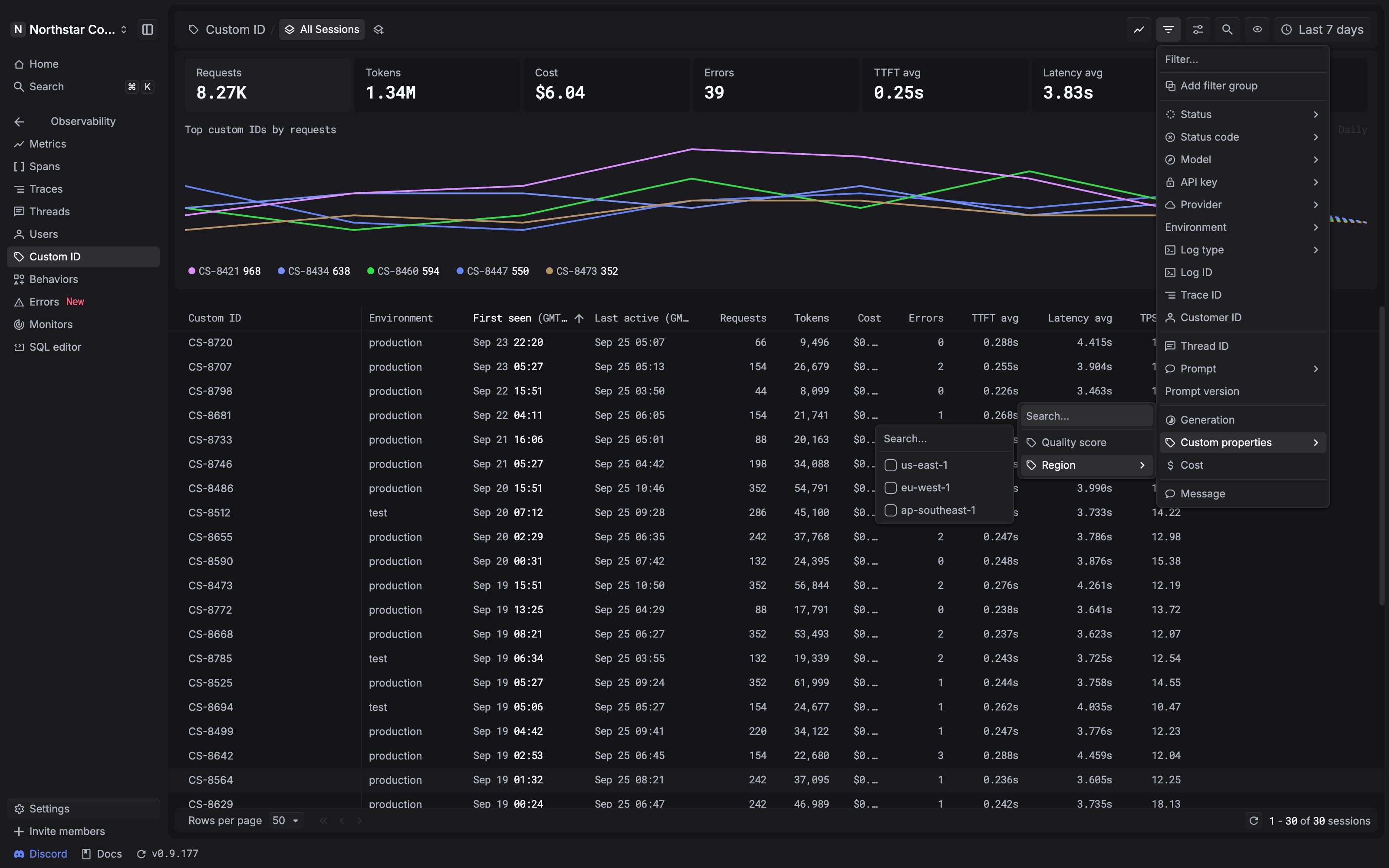
Use Filter → Custom properties to narrow the list by a property available in your project. For example, choose Region and select the region you want to investigate.
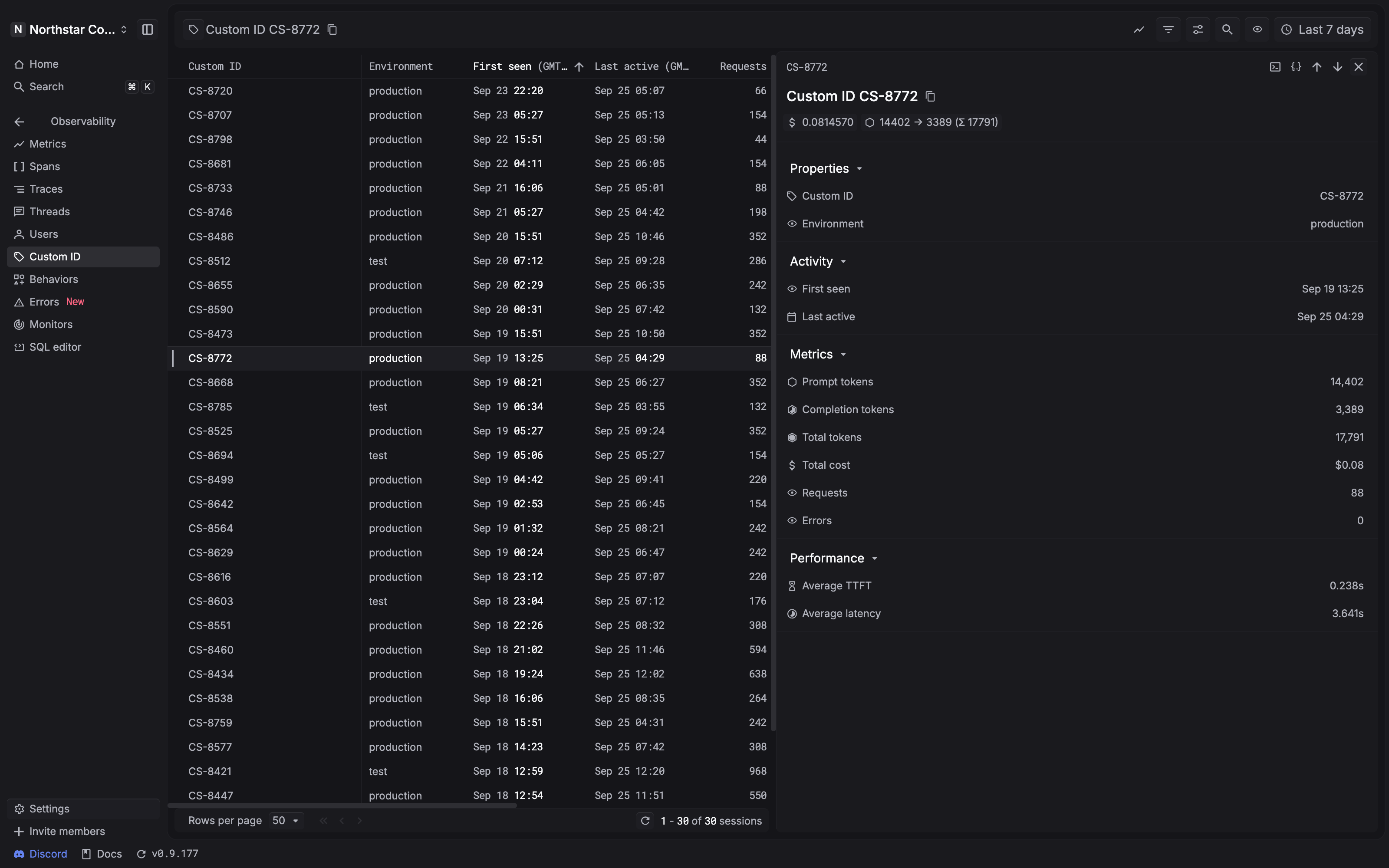
Select a Custom ID row to open its detail panel. The panel brings together:
Inspect custom properties
Open a related span and select Metadata to inspect its identifiers and custom properties. To find spans with a particular property, use Filter → Custom properties on the Spans page, select the key, and enter its value. See Explore spans for the filtering workflow.
If the expected activity is missing, check the selected time range and verify
that the requests include the same custom_identifier. A property named
custom_identifier inside metadata is an additional property; send the
dedicated field shown in the examples to set the Custom ID.