

Datasets for production data
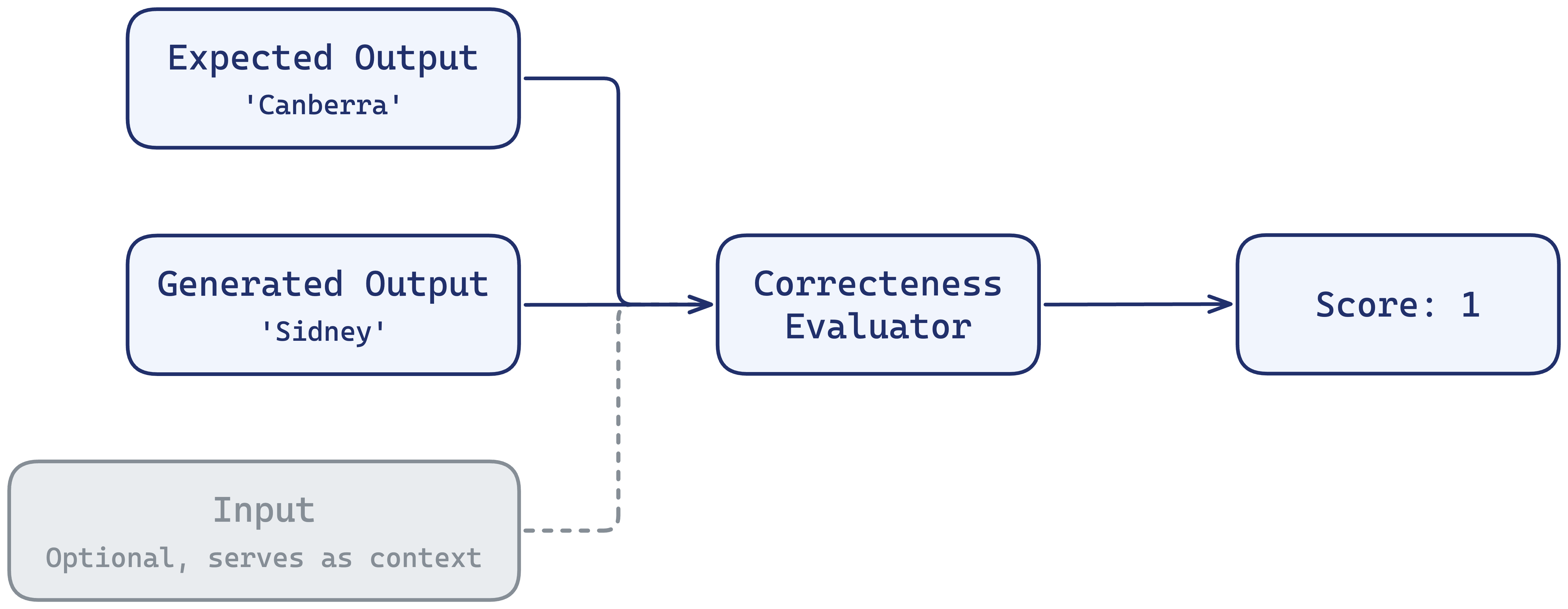
Use this setup to grade outputs that already exist: answers captured from production, a previous run, or a hand-built set of good and bad examples. Respan scores the output already stored on each row, so nothing is generated.
This walkthrough uses the shared “world capitals” dataset from the Datasets overview, here with a stored output on every row.
What each row needs
Create the dataset
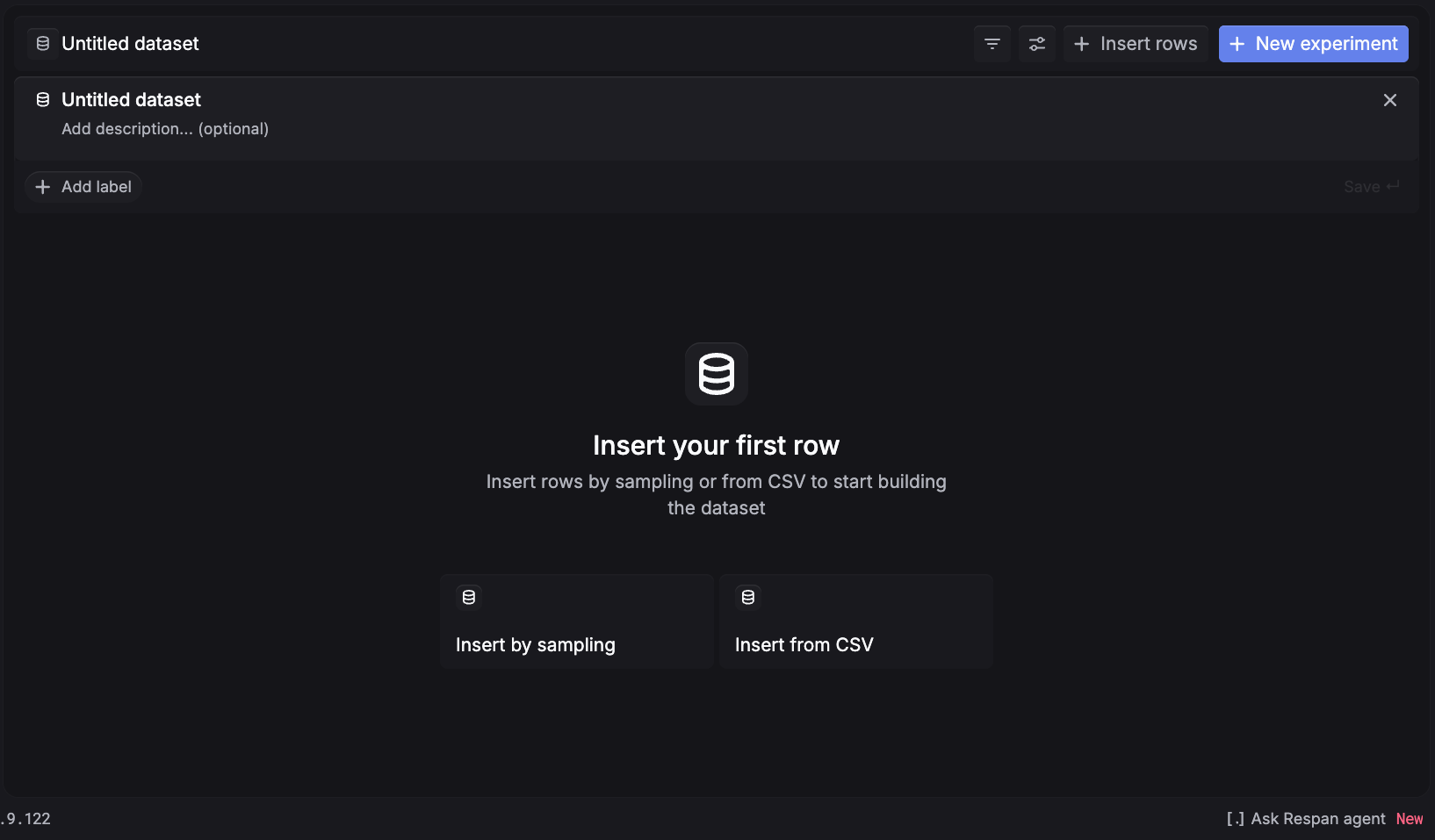
Click New Dataset, give it a name, and you land on an empty dataset with two ways to add rows: Insert by sampling (pull answers from your production traffic) or Insert from CSV (upload a curated set). The required field here is output, so both paths center on getting a stored answer onto each row.
Insert by sampling
Insert from CSV
Sampling is the natural fit for this setup: your production spans already carry the response the model gave, and it lands directly in each row’s output. Nothing is generated, so you are grading real answers exactly as they shipped.
Set the time range
Pick the window the answers you want to grade were produced in. The range defaults to a narrow recent window (the last 15 minutes), so widen it if Estimated rows reads 0.
Filter to the answers you want to grade
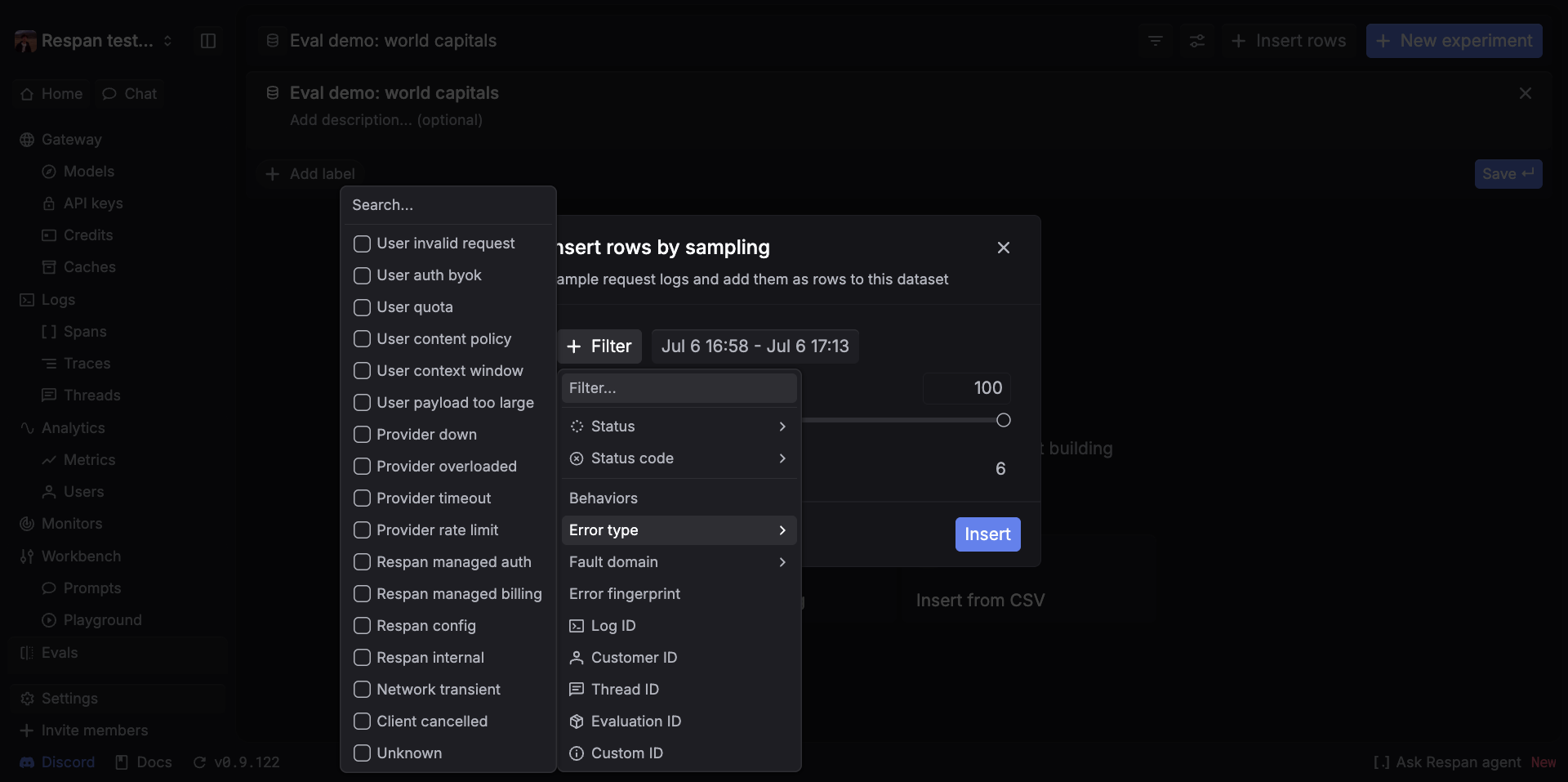
Click + Filter and set Status to a success value so you grade delivered answers rather than errored calls. Then narrow to the traffic you want to review: use the Filter… search to find a field such as Model, Customer ID, Thread ID, or a Custom ID / metadata value.
With the rows in, run the dataset through an experiment with Task type = Dataset outputs. Nothing is generated: Respan scores each stored output against its expected_output.
Related setups
- Datasets for prompt optimization. Generate from a saved prompt template.
- Datasets for model comparison. Generate from a raw model.
- Back to the Datasets overview.