

Simulations
Test a committed prompt version across realistic multi-turn conversations.
What is a simulation?
A simulation tests a committed prompt version against a generated set of realistic, multi-turn conversations. Respan creates different users, goals, situations, and interaction styles, then runs the conversations against your prompt so you can find failures that a single test message might miss.
Simulations are useful when you want to check how a prompt handles normal workflows, ambiguous requests, frustrated users, or recovery from misunderstandings. The generated scenarios are saved and reusable, letting you re-run the same tests against different versions of a prompt.
Use Experiments when you already have a fixed dataset and want to compare prompt or model configurations. Use Simulations when you want Respan to generate realistic multi-turn scenarios from a committed prompt version.
Create a simulation
You can start from the Prompts page or from Evaluations → Simulations.
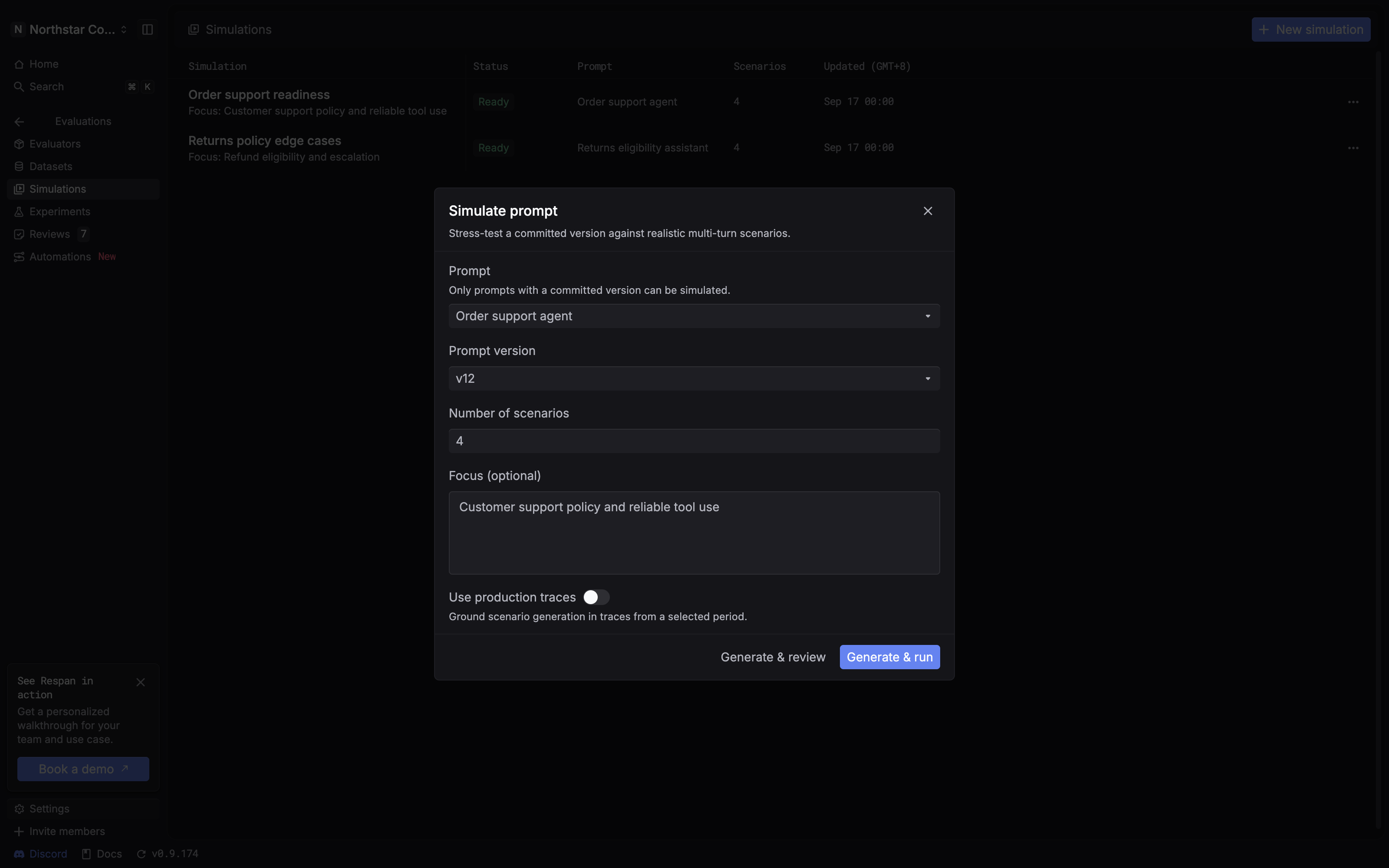
1. Select a committed prompt version
Open a prompt and click Simulate, or click New simulation on the Simulations page. Select the prompt and version you want to test. Only prompt versions that have been committed can be simulated.
The prompt configuration is the default source for scenario generation. Respan uses the prompt’s messages, variables, tools, output schema, and model configuration to understand what the prompt is intended to do.
2. Configure scenario generation
Set the following options:
When you enable production traces, select a start and end time. Respan samples traces associated with the selected prompt and applies pattern-based redaction for common sensitive values before using them to generate scenarios.
3. Choose how to continue
- Generate & run creates the scenarios and starts the simulation immediately.
- Generate & review creates the scenarios first so you can inspect them before running.
Respan generates, validates, and saves the scenarios.
Review scenarios
Use Generate & review to inspect the generated scenarios before running them. The scenarios open on the Scenarios tab after generation. Select a scenario to view its details.
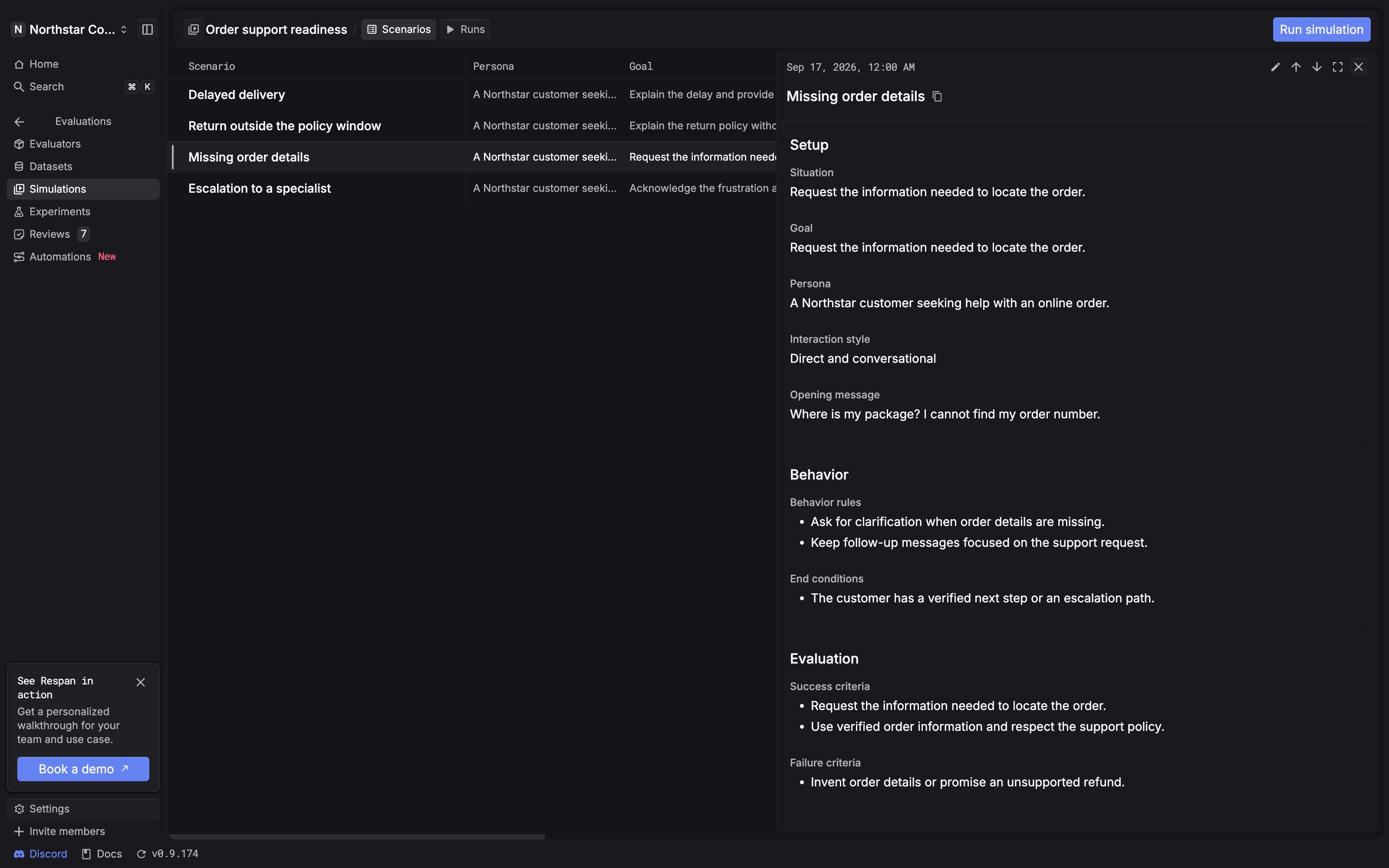
Each scenario defines a conversation to test. It can include:
- A user persona, including role, expertise, and relevant context
- A goal and situation
- An interaction style, such as skeptical, vague, impatient, or frustrated
- An opening message and behavior rules for later turns
- Success and failure criteria
- A maximum number of turns and end conditions
Respan checks required fields and filters out scenarios with duplicate titles or opening messages. Review the generated scenarios for useful coverage and clear evaluation criteria.
Manage scenarios
Open a scenario’s actions menu and select Edit scenario to update its persona, goal, interaction style, behavior rules, success or failure criteria, or maximum turns. Select Save changes to update the scenario. Scenario edits apply to future runs. Existing run reports are retained.
Use the Enabled switch to control which scenarios are included in future runs. Disabled scenarios remain in the simulation and can be enabled again later. Keep at least one scenario enabled to run the simulation.
To permanently remove a scenario, open its actions menu, select Delete scenario, and confirm. Existing run reports are retained. This action cannot be undone.
Run a simulation
A simulation can be run again against a committed prompt version. Open a simulation and click Run simulation, then confirm the prompt version and click Run.
Simulations use the selected prompt version and its saved variable defaults. Conversations end when the simulated user considers the exchange complete or the turn limit is reached. Respan then evaluates the conversation against the scenario’s criteria.
Tool calls are recorded, but tools are not executed. Simulations use placeholder tool responses.
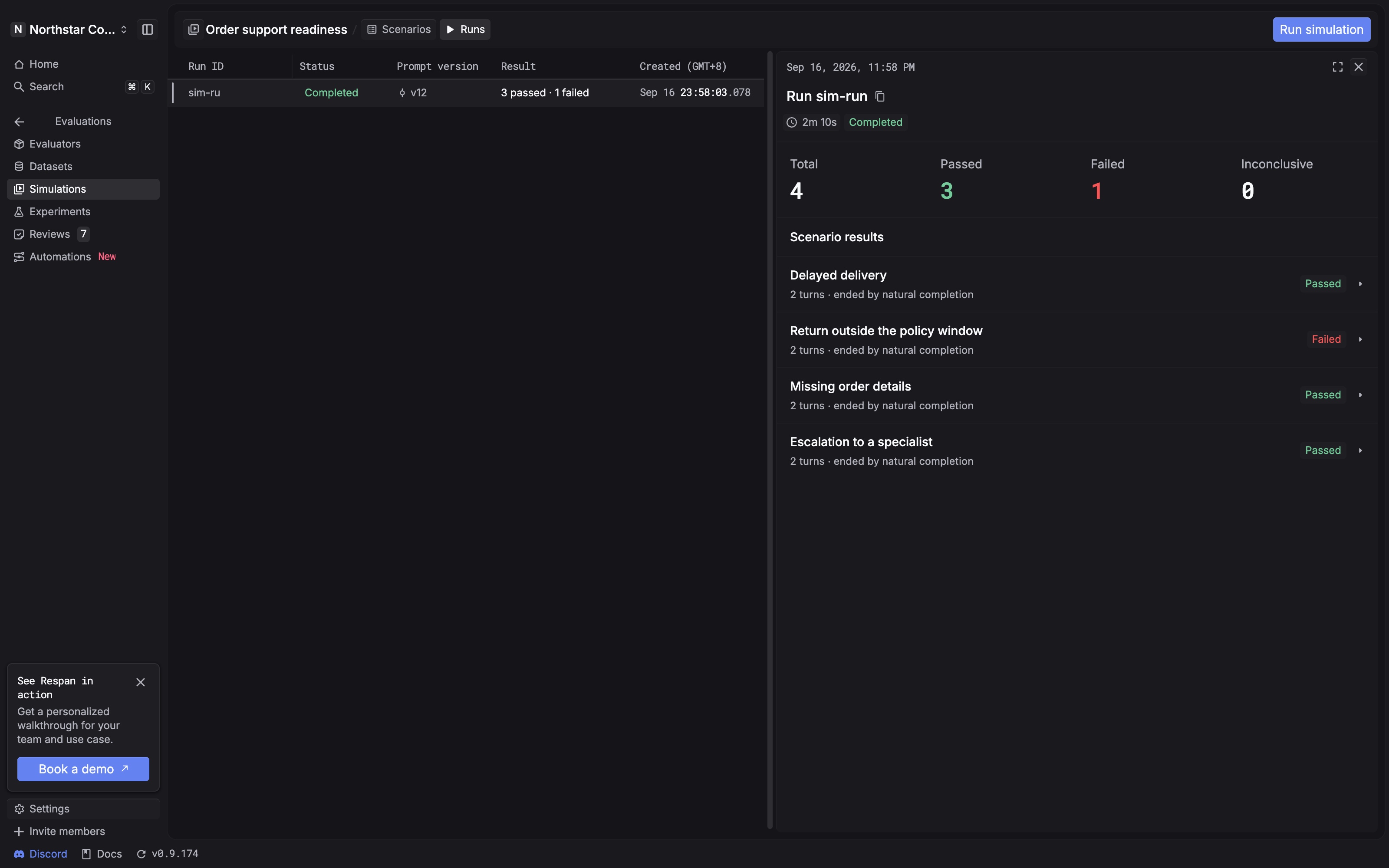
The Simulations page lists simulations with their status, prompt, scenario count, and last update. Open a simulation to switch between:
- Scenarios: inspect the reusable scenarios
- Runs: view each execution of the simulation.
Understand results
Open a run from the Runs tab to view its progress. Once it completes, review the summary and scenario results, then open a scenario to inspect the conversation.
Iterate on a prompt
Reuse the same scenarios as you improve your prompt:
- Review the results and identify behavior you want to improve.
- Update the prompt and commit a new version.
- Run the simulation again against the new committed version.
- Compare the conversations and results across runs.
Next steps
- Prompt management: create, commit, and deploy prompt versions
- Experiments: run fixed datasets and compare prompt or model configurations
- Evaluations quickstart: learn the broader evaluation workflow