

Datasets for prompt optimization
Use this setup when the thing you want to evaluate is a saved prompt. Respan fills your prompt with each row’s input variables, generates a fresh output, then scores it. Because the output is generated during the run, the dataset supplies only the inputs.
This walkthrough uses the shared “world capitals” dataset from the Datasets overview. Six rows, each an input question and its expected_output capital.
What each row needs


Create the dataset
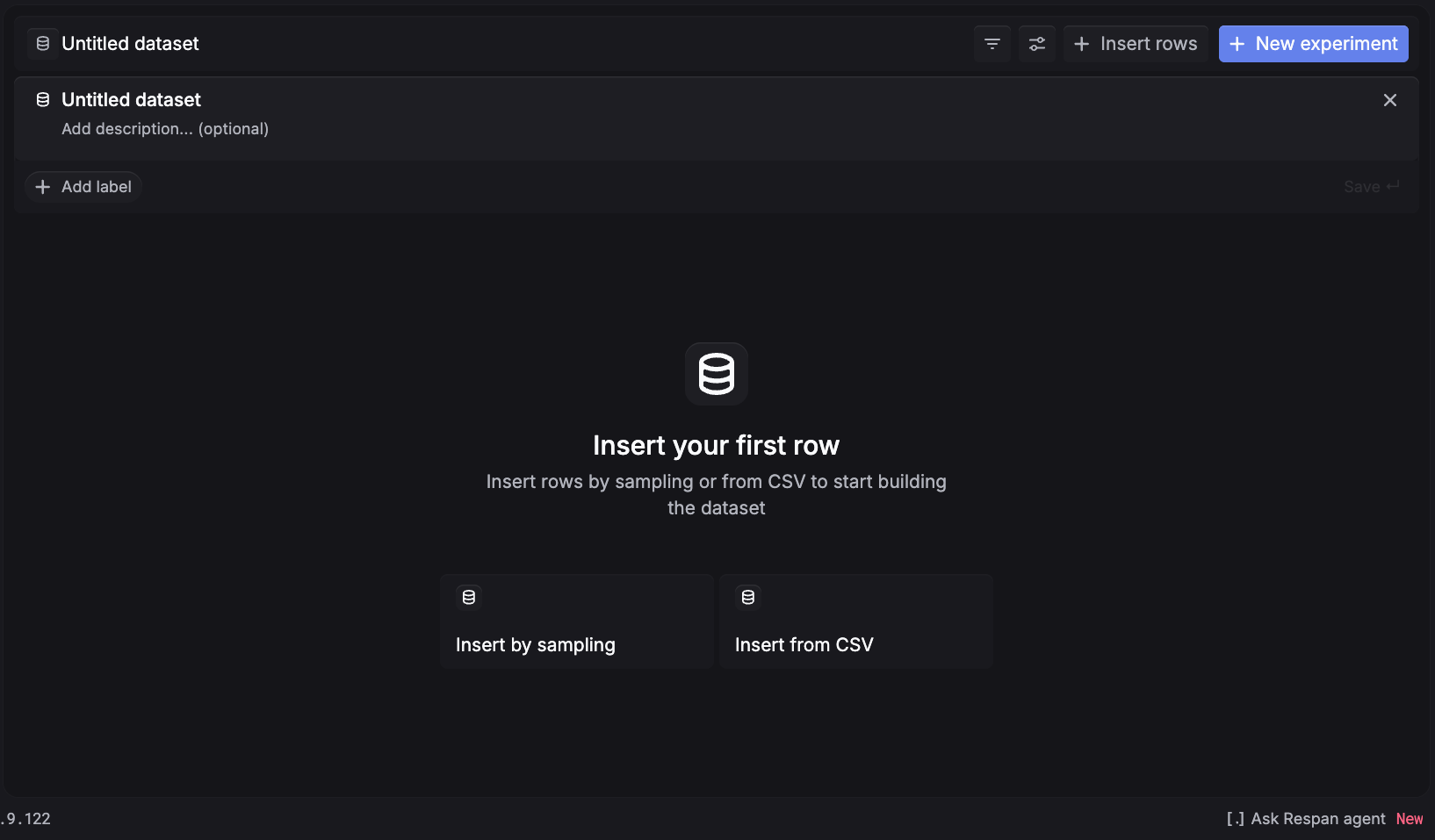
Click New Dataset, give it a name, and you land on an empty dataset with two ways to add rows: Insert by sampling (pull from your production traffic) or Insert from CSV (upload curated cases). Pick whichever matches where your test cases live.
Insert by sampling
Insert from CSV
Sampling pulls rows straight from your production request logs, so it is the fastest way to test your prompt on real inputs. For a prompt dataset, each row’s input must hold your prompt variables keyed by name, and sampling only records them that way when the original call ran through the Gateway with a managed prompt (or was captured with Prompt logging).
Set the time range
Pick the window your prompt’s traffic ran in. The range defaults to a narrow recent window (the last 15 minutes), so widen it if Estimated rows reads 0.
Filter to the calls that used your prompt
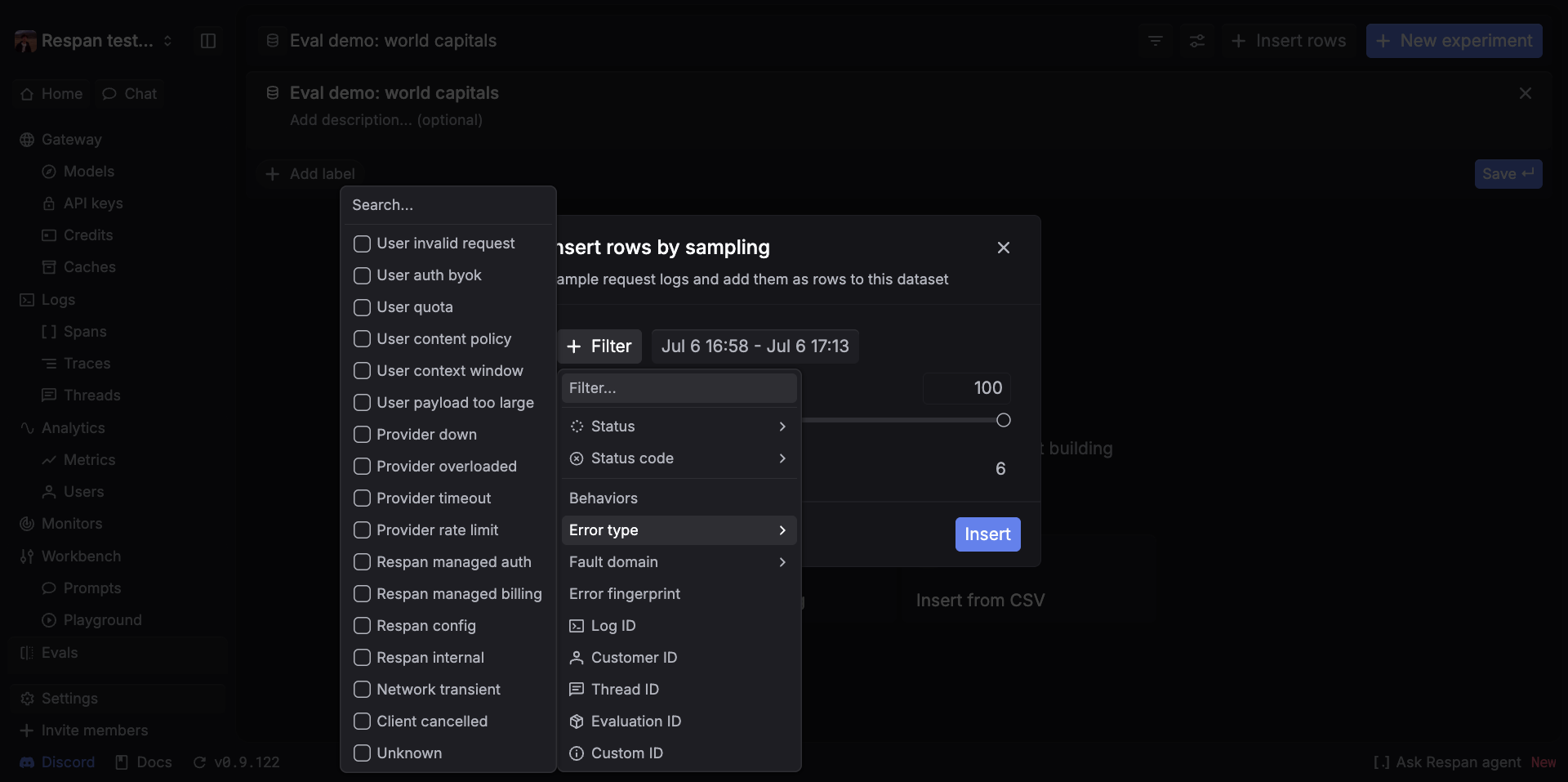
Click + Filter and set Status to a success value so you skip errored calls. Then add a filter that isolates this prompt’s traffic: use the Filter… search to find a field such as Model, Customer ID, Thread ID, or a Custom ID / metadata value you tagged the calls with. Without a narrowing filter you will sample every log in the range, not just this prompt’s.
A plain LLM-call span does not separate variables out by key, so it cannot fill a template. If your calls did not run through the Gateway, use Insert from CSV instead.
With the rows in, run the dataset through an experiment with Task type = Prompt to generate and score outputs.
Related setups
- Datasets for model comparison. Generate from a raw model instead of a saved prompt.
- Datasets for production data. Score answers you already have, with no generation.
- Back to the Datasets overview.