

Building your first LLM eval
The simplest and most common evaluator is a single LLM grader with no branching: Original input to the grader to Final result. This walkthrough builds an LLM correctness check on a “world capitals” dataset, the same dataset used in the Datasets guide. Once you have this shape down, the other examples add one capability at a time.
New to the pieces involved? Start with the Evaluators overview.
Walkthrough
Create the grader
In the Graders section, add an LLM grader named Correctness. Set the output type to Number, the range to 0 to 1, and the passing score to 1. Write a definition that compares the output to the expected answer:
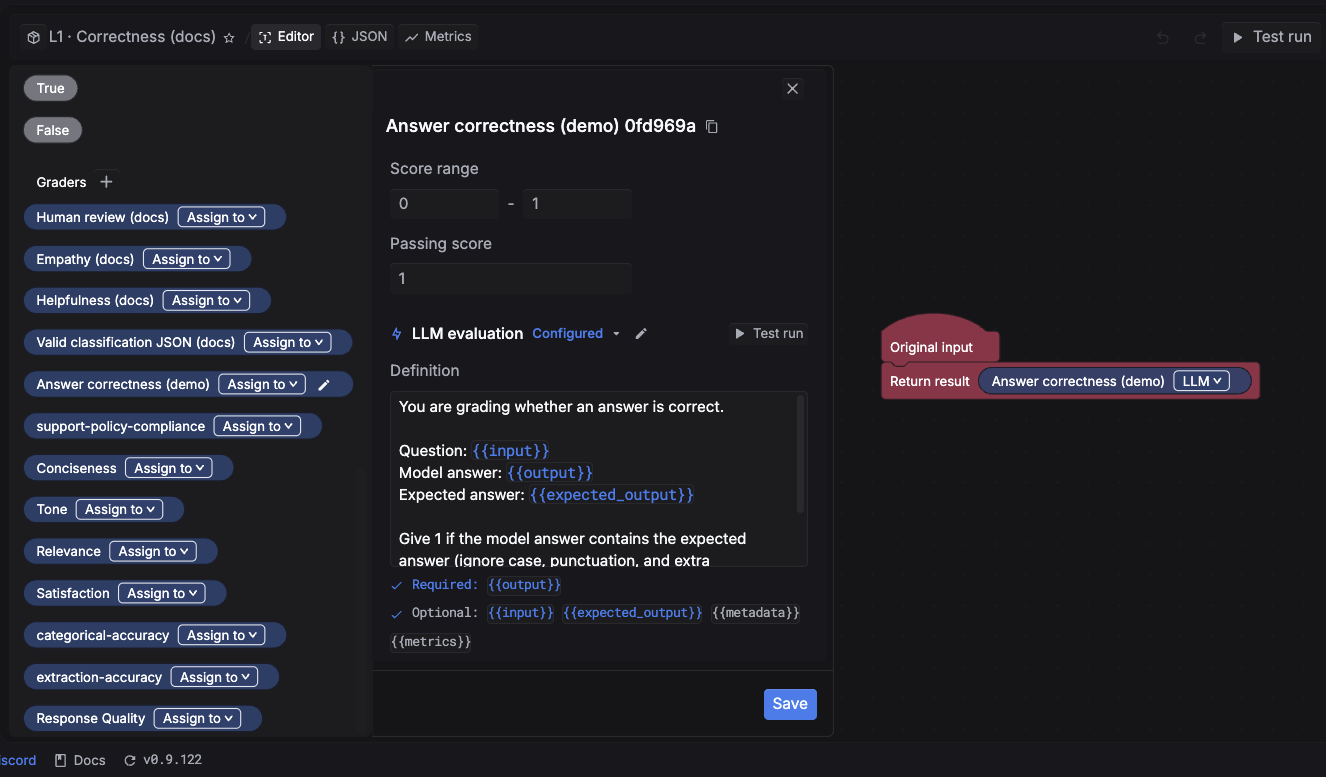
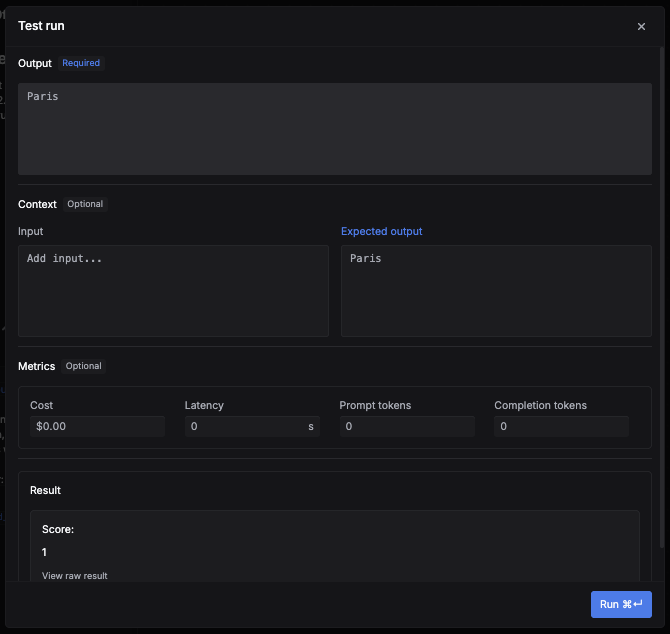
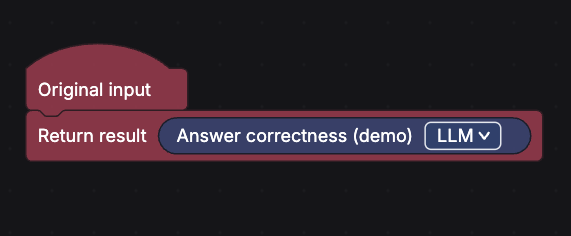
That is a complete evaluator, ready to attach to an experiment or online eval.
Deploy and versioning
Every deploy publishes a new, immutable version, so you can iterate safely:
- Test run: validate the full flow against sample data before publishing.
- Deploy: publish the current canvas as a new version.
- Versions: view history and load an older version back into the editor.
What’s next
Each example builds on this one by adding a single capability:
- Deterministic code checks. A deterministic Python check with no LLM cost.
- Weighted-average scoring. Combine two graders into one weighted score.
- Route failures to human review. Escalate low-scoring outputs to a person.