

Retention & export
Retention & export
Control how long logs remain available and create one-time or recurring export jobs.
Retention and export solve different operational needs:
- Retention determines the period configured for logs in the current project.
- Export jobs create an offline copy of selected records with explicit filters, columns, sampling, and file format.
Review retention before an incident or compliance deadline. Create an export when another system or teammate needs a durable copy of the selected records.
Review the retention policy
Open the project Retention page to see the default period provided by the current plan.
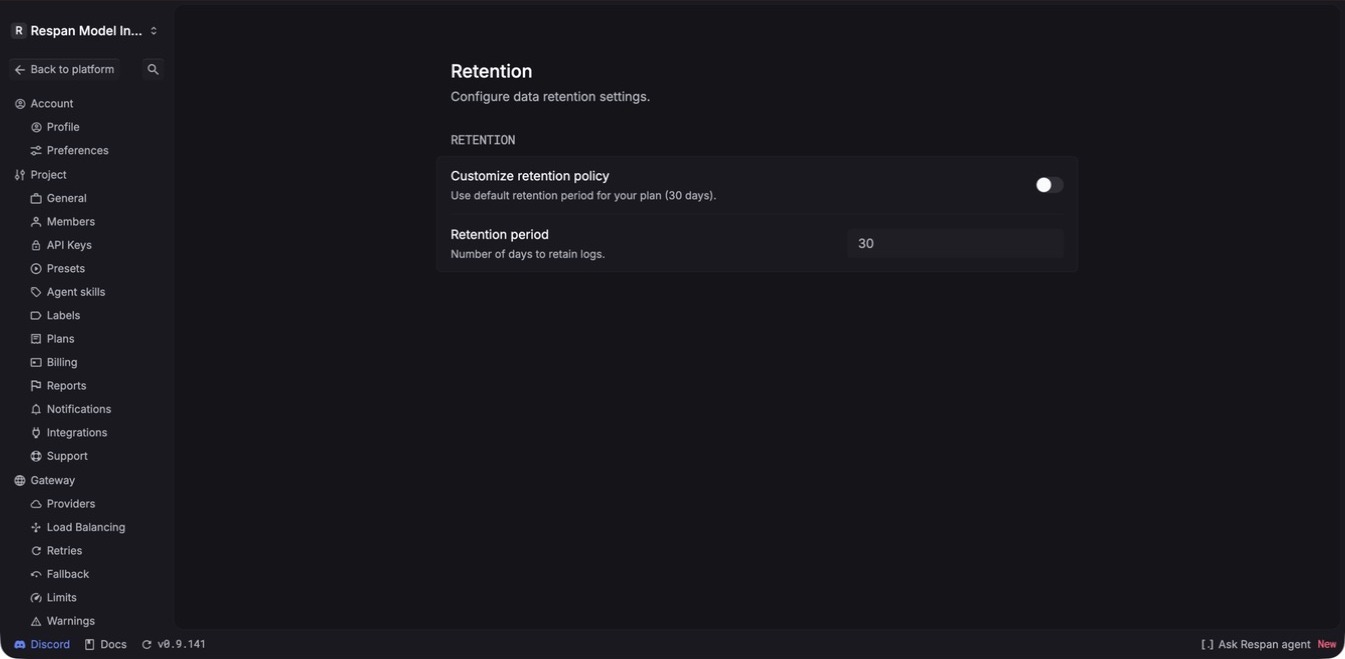
The example project above has a 30-day plan default. Your project can show a different value. When your plan and permissions allow customization, enable Customize retention policy, enter the number of days, and confirm the resulting value on this page.
Changing retention can affect what remains searchable in Logs, Traces, and Threads. Confirm your plan, permissions, and data-governance requirements before shortening the period. Export required records before making a time-sensitive change.
The Retention page is the source of truth for the period configured in the current project. If the effect on already stored data is important to a compliance workflow, confirm the behavior with your project administrator or Respan support before changing it.
Create a one-time export
Start from the table whose records you want to export, such as Spans or Traces, then select the download control in the upper-right toolbar.
Define the records
Set the time range and filters for the intended cohort. The export panel shows the number of matching records so you can catch an unexpectedly broad or empty selection.
Choose the sample and name
Set Sampling % to export all matching records or a smaller sample. Add an optional export name that identifies the project, cohort, and time window.
Choose columns
Keep only the fields the destination needs. Available columns can include identifiers, customer and thread context, input and output, model and provider, status, cost, tokens, latency, cache metrics, organization, and custom properties.
Remove prompt content, customer identifiers, API keys, and other sensitive fields unless the destination is approved to receive them.
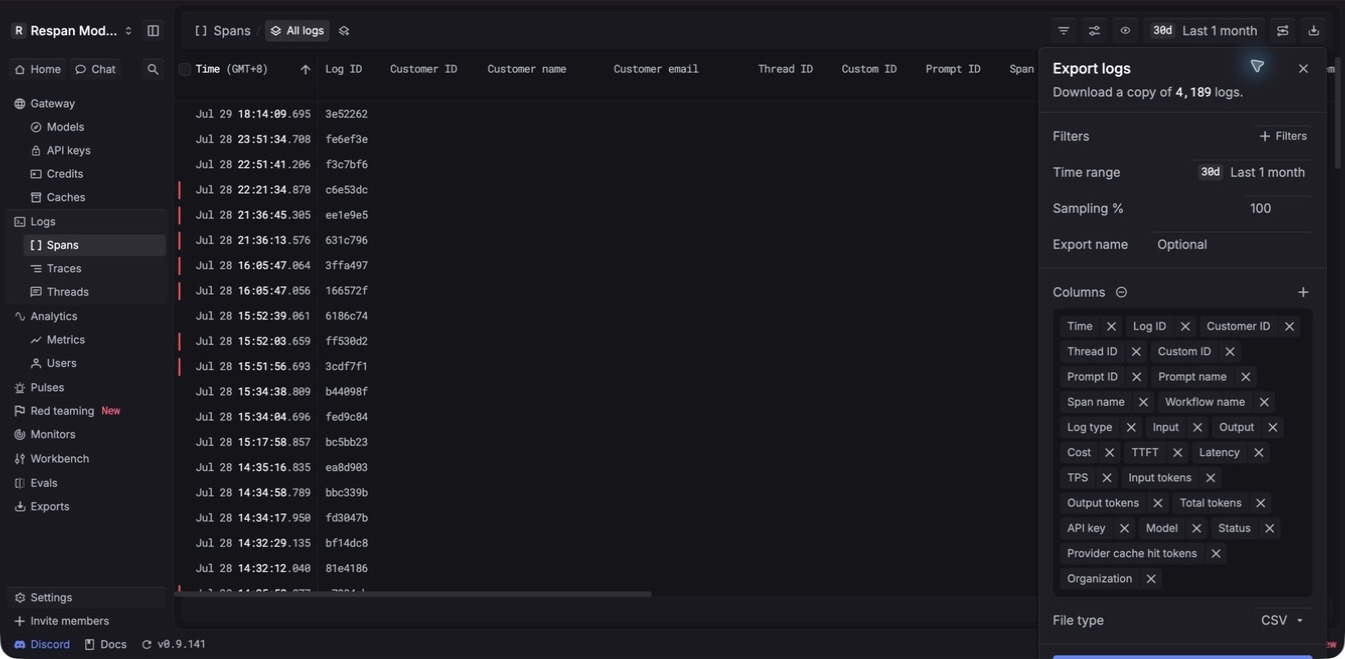
The table’s quick download action is useful for a selected set of rows. Use the export panel when you need a named job with explicit filters, sampling, columns, and a record on the Exports page.
Create a recurring export
Open the export mode control and choose Recurring export when a downstream workflow needs a refreshed copy. The current recurring export runs every 15 minutes.
Configure filters, sampling, name, and columns with the same care as a one-time job, then select Start export.
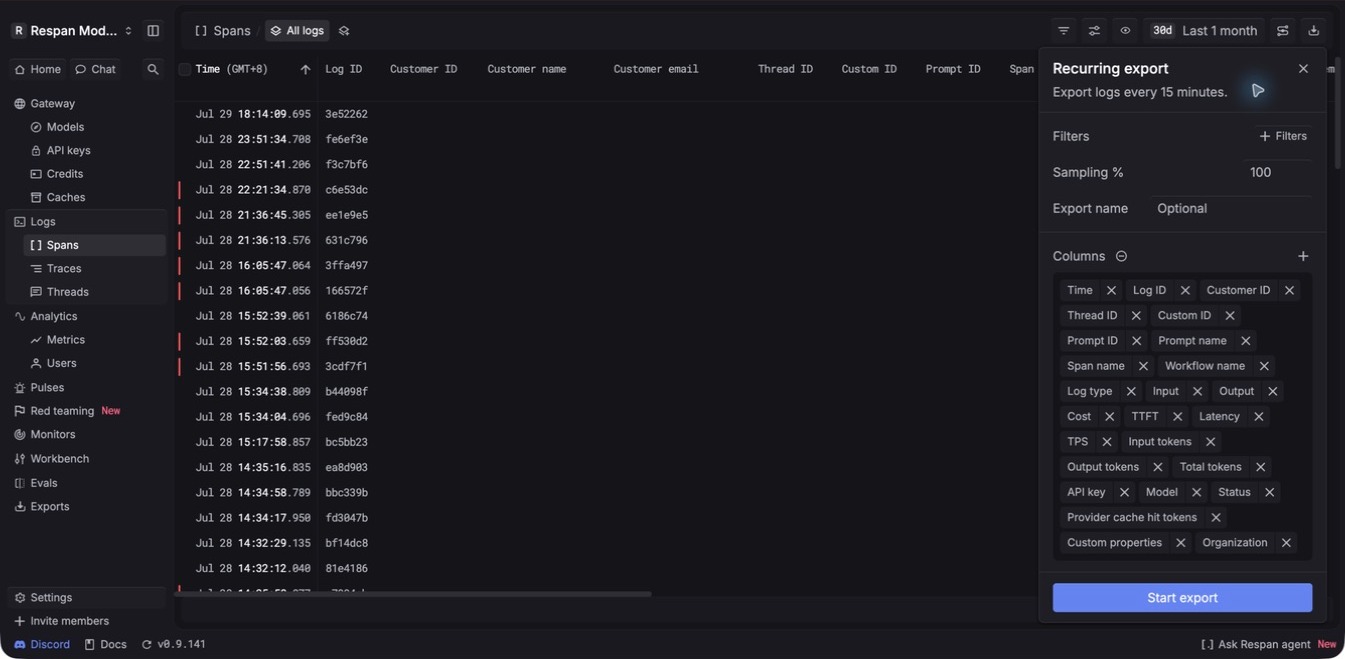
Use recurring jobs only when the downstream workflow is prepared to handle repeated export batches and the selected fields are appropriate for ongoing transfer.
Manage export jobs
Open the Exports page to view and manage export jobs. Jobs can be started from logs, traces, users, or datasets.
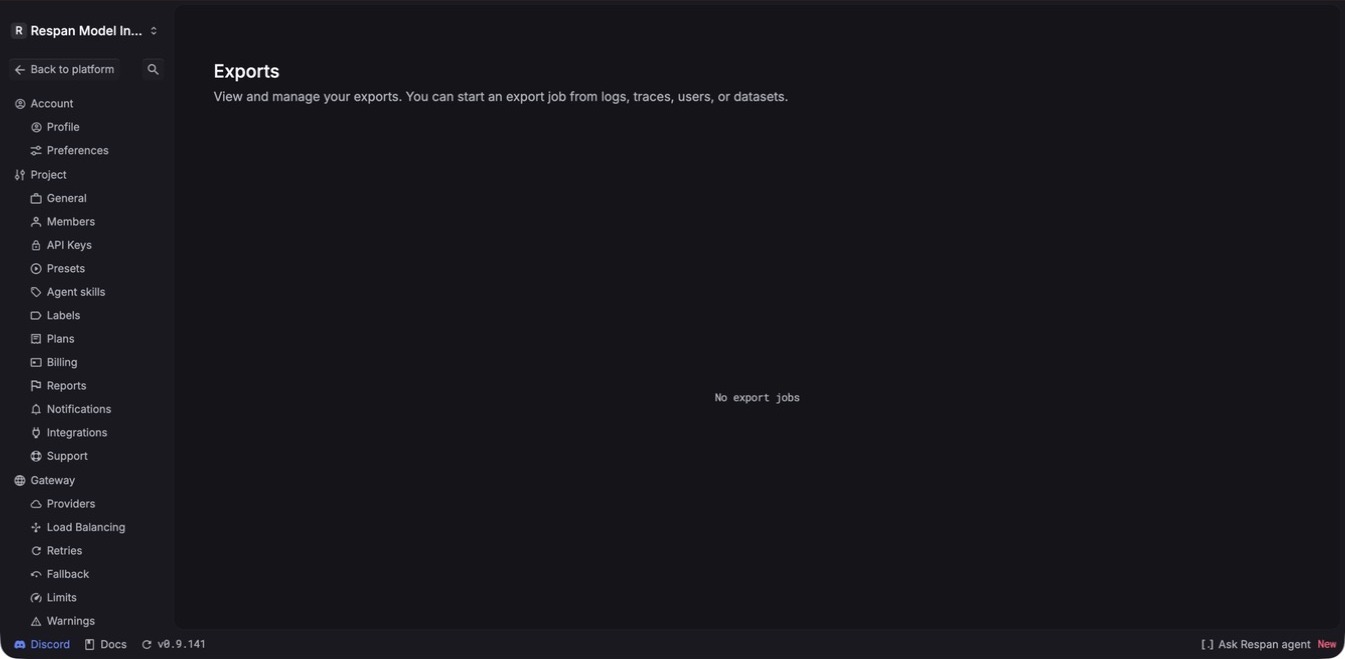
An empty page means that no export jobs are available in the current project. Return to the source table, confirm the project and filters, and start the job from its export control.
Before sharing exported data
- Use the smallest time range, sampling percentage, and column set that meets the task.
- Remove customer identifiers, credentials, prompt content, and custom properties that the recipient does not need.
- Store the file in an access-controlled destination with its own lifecycle policy.
- Record the project, time range, filters, and export name so another person can reproduce the dataset.
- Delete temporary local copies when the review is complete.
An exported file is outside the platform’s searchable retention window. Apply your organization’s storage, deletion, and access policies to that copy.
Troubleshooting
The export contains too many or too few rows
Return to the source table and verify the project, time range, filters, and sampling percentage. Confirm the matching count before starting a replacement job.
A needed field is missing
Open Columns in the export panel and add the field before starting the job. If the value is not recorded on the source spans, update instrumentation first; an export cannot reconstruct data that was never captured.
The Exports page is empty
Make sure the job was started in the same project. If it was not, return to Spans, Traces, Users, or Datasets and create the export from there.
Older logs are unavailable
Check the project’s Retention page. If the records fall outside the configured period, contact your project administrator or Respan support rather than assuming that changing the current value will restore earlier data.