

Microsoft Teams
Set up Respan
- Sign up — Create an account at platform.respan.ai
- Create an API key — Generate one on the API keys page
- Add credits or a provider key — Add credits on the Credits page or connect your own provider key on the Integrations page
Use AI
Add the Docs MCP to your AI coding tool to get help building with Respan. No API key needed.
Connect Microsoft Teams to Respan so monitors, automations, and other workflow notifications can post directly to a Teams channel. The connection is per-organization and signs in through your Microsoft work or school account — messages are posted on behalf of the user who connects, and the teams and channels that user can see become available as notification destinations.
Microsoft Teams is only available on work or school (Microsoft 365) accounts. Personal Microsoft accounts are not supported.
Connect Microsoft Teams
Open the Integrations page
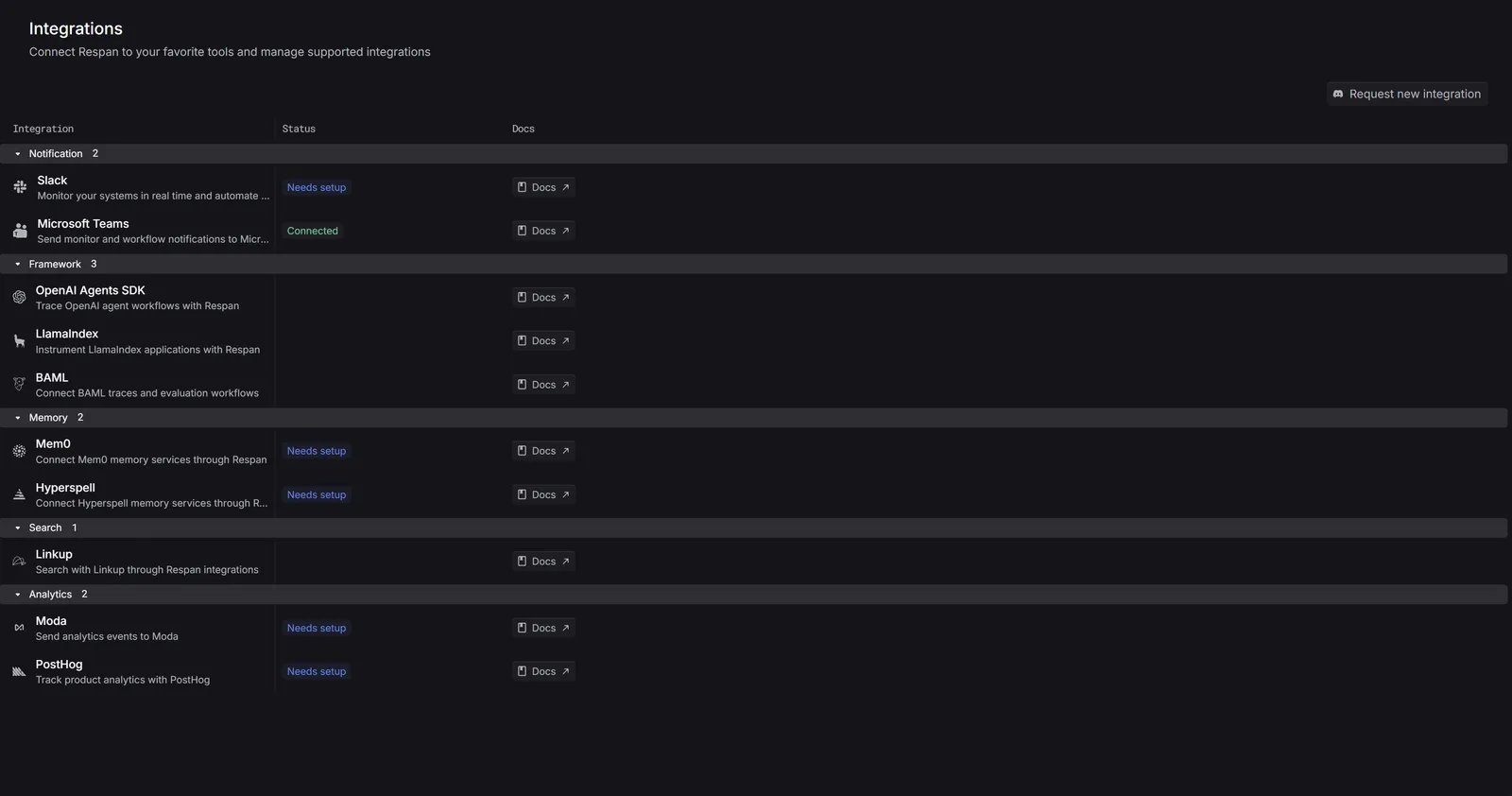
Go to the Integrations page under Settings. Find Microsoft Teams in the Notification section and click Connect.
Approve Respan in Microsoft
Clicking Connect opens a Microsoft sign-in popup. Sign in with your work or school account, review the permissions Respan is requesting, and accept. The popup closes on its own once the handshake finishes, and the Integrations page refreshes to show the connected state.
Respan requests the minimum delegated permissions needed to post messages and let you pick channels:
Depending on your organization’s Microsoft Entra settings, an admin may need to approve Respan before members can connect. If you see a “Need admin approval” screen, ask your Microsoft 365 admin to grant consent, then connect again.
Use Microsoft Teams in Respan
Once connected, Microsoft Teams shows up as a notification destination anywhere Respan sends alerts.
Monitor alerts
Open a monitor and, under Notifications, select Microsoft Teams. Teams addressing is two-level: first pick a team, then pick a channel within it — both dropdowns are searchable and fetched live from your connected account.

Messages are posted on behalf of the user who connected the integration, so the picker shows the teams and channels that user is a member of — including their private channels. If a channel is missing, the connecting user needs to be added to it in Teams first.
Multiple destinations
A single monitor or automation can post to more than one Teams channel. Add each channel as its own notification destination — Respan will fan out the message.
Disconnect Microsoft Teams
On the Integrations page, click Disconnect on the Microsoft Teams row. Respan deletes its stored tokens and channel references. You can reconnect at any time; previous monitor configurations that referenced Teams channels will need a new channel selection after reconnecting.
Disconnecting removes the connection on the Respan side. To also revoke Respan’s access grant in Microsoft, remove Respan from myapplications.microsoft.com, or have an admin remove it under Enterprise applications in the Microsoft Entra admin center.
Troubleshooting
The popup shows a "Need admin approval" screen
Your organization’s Microsoft Entra settings require admin consent for new apps. Ask a Microsoft 365 admin to approve Respan — either through the approval request in that screen or by granting consent in the Entra admin center — then click Connect again.
A team or channel is missing from the picker
The picker only lists teams and channels the connecting user is a member of. Add that user to the team or channel in Microsoft Teams, then reopen the picker.
Alerts stopped arriving after a long pause
Respan refreshes Microsoft tokens automatically, but the refresh token itself can be invalidated — for example when the connecting user’s password is reset, their account is disabled, or an admin revokes the app’s sessions. Disconnect and reconnect on the Integrations page to issue fresh tokens.