

Quickstart
Keep prompts in Respan instead of in your code. Your app calls a prompt by its ID, and when you deploy a new version, the next call uses it with no code change.
Create a prompt
In the platform, go to Gateway › Prompts and click New prompt (or press C). Respan creates Untitled prompt and opens it in the editor. To rename it, hover its tab and click the pencil.
Write the messages
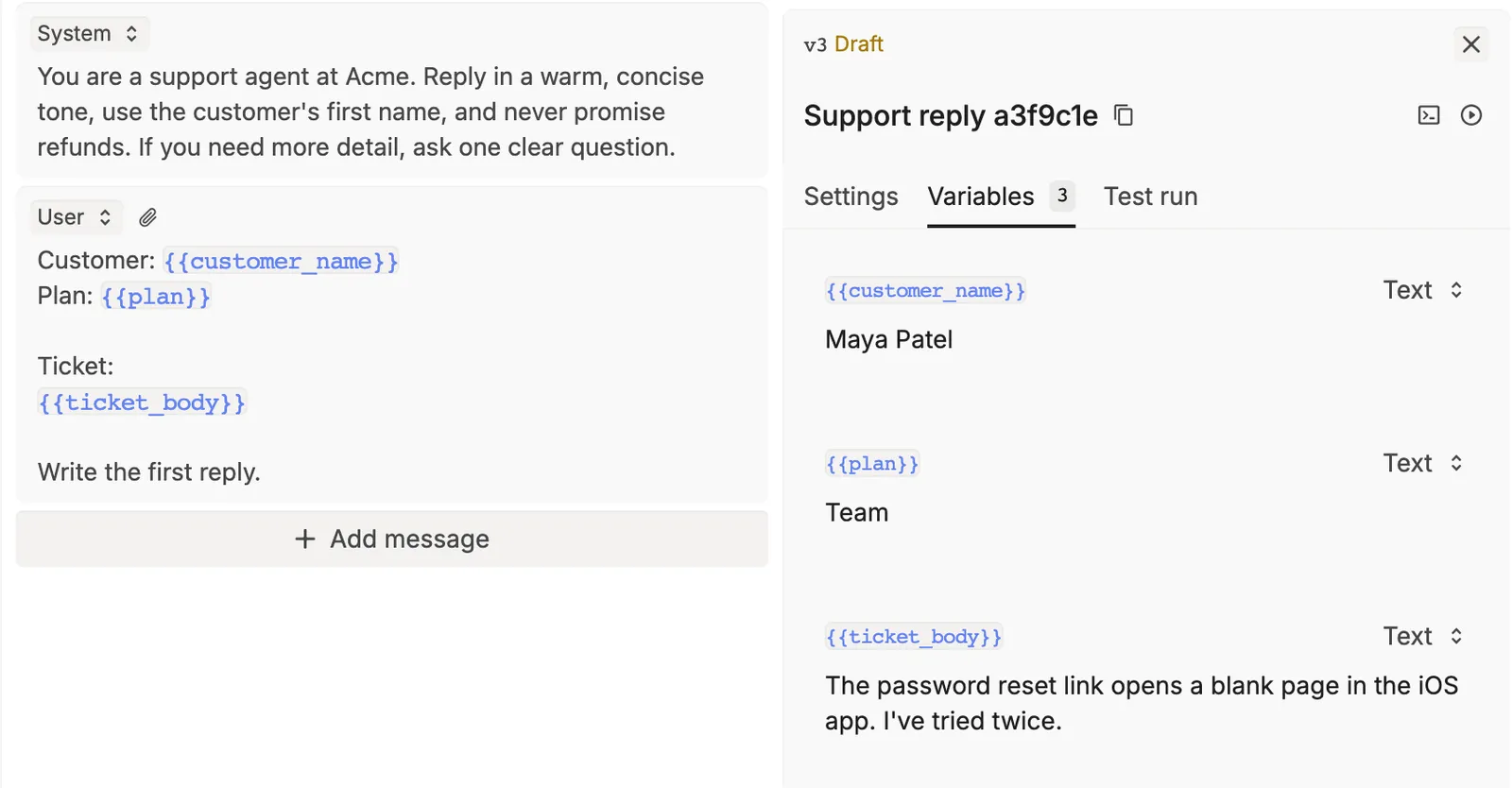
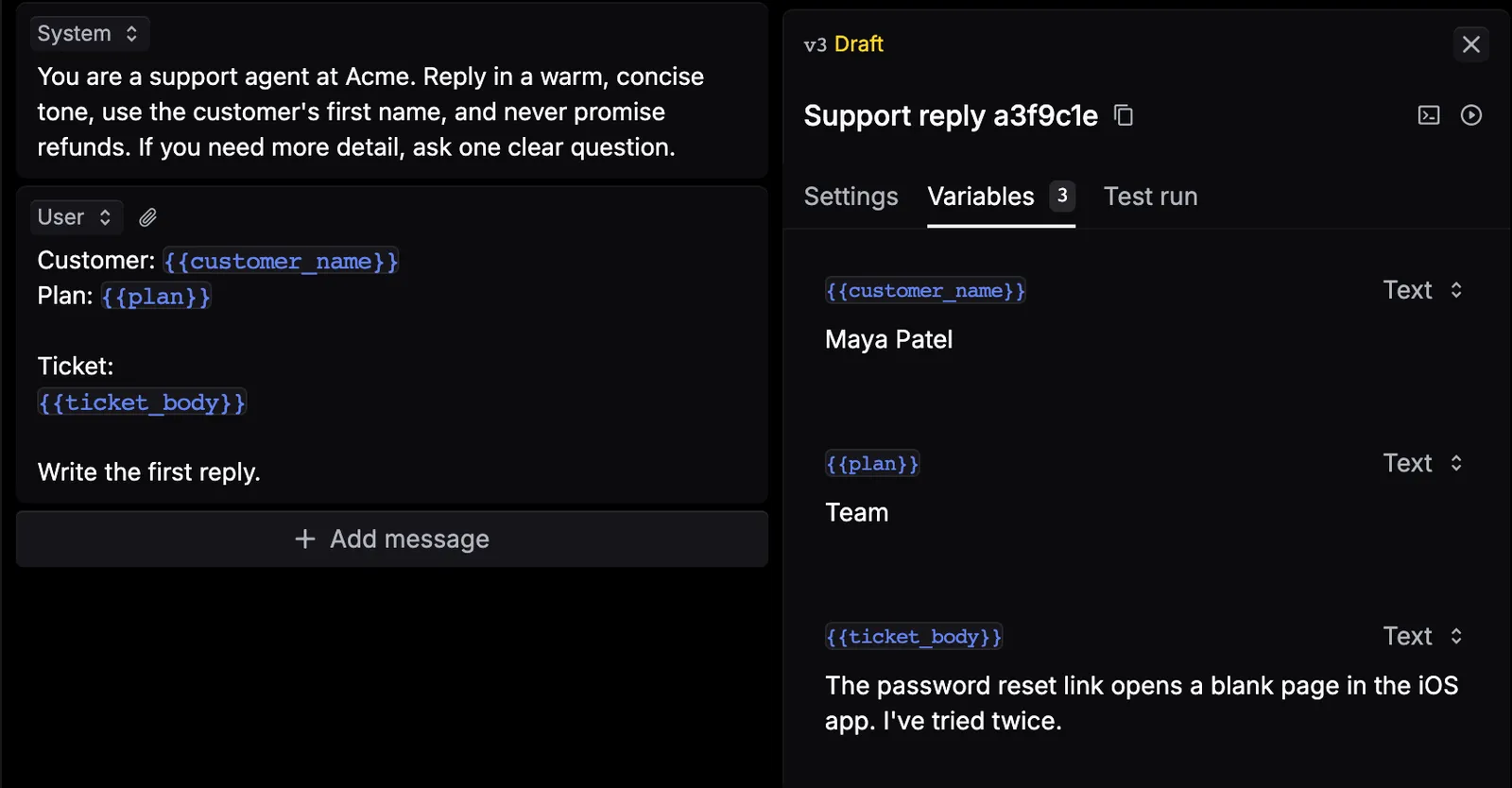
Fill in the System and User messages. Wrap anything that changes per request in double braces, like {{customer_name}}. Each variable gets a field in the Variables tab. Click Add message to add more turns.
Pick a model and test
Click Open side panel (the icon at the top right), or press .:
- Settings: choose the Model, click Add fallback model for a backup, and tune Model settings such as temperature and max tokens.
- Variables: enter a test value for each variable.
Click Run (⌘ ↵). The reply shows in the Test run tab.
Commit and deploy
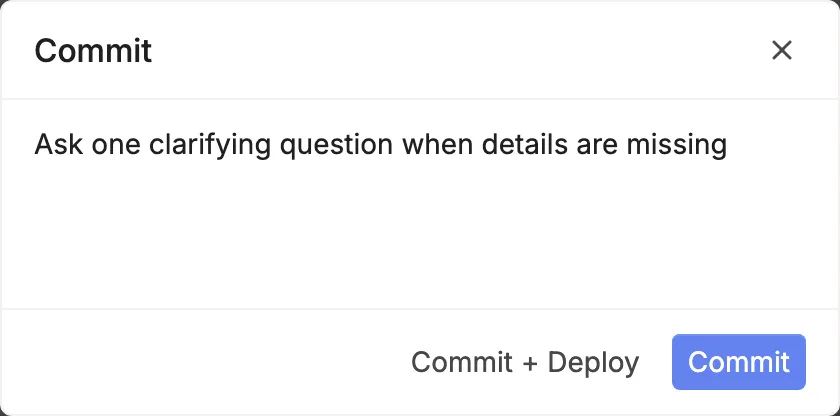
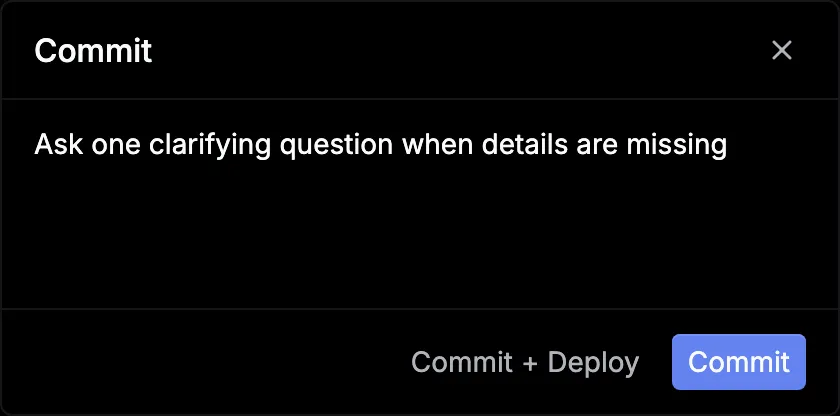
Click Commit (⌘ S), type a message (or press Tab to generate one), and click Commit + Deploy. Commit alone saves a version without making it live.
Respan shows Your prompt was deployed with the Prompt ID. Copy it. To find it later, click the copy icon next to the prompt name in the side panel and choose Copy ID.
Call the prompt
Send a prompt object with the prompt ID and your variables. Respan fills the variables into the deployed version and uses that version’s messages, model, and settings. You need a Respan API key and credits or a provider key; see the Gateway quickstart.
OpenAI (Python)
OpenAI (TypeScript)
cURL
To see the calls, click Logs next to the prompt’s tab at the top (or press L). Logs opens filtered to this prompt.
Ship a new version
Edit the prompt and click Commit + Deploy again. Your app gets the new version on its next call.
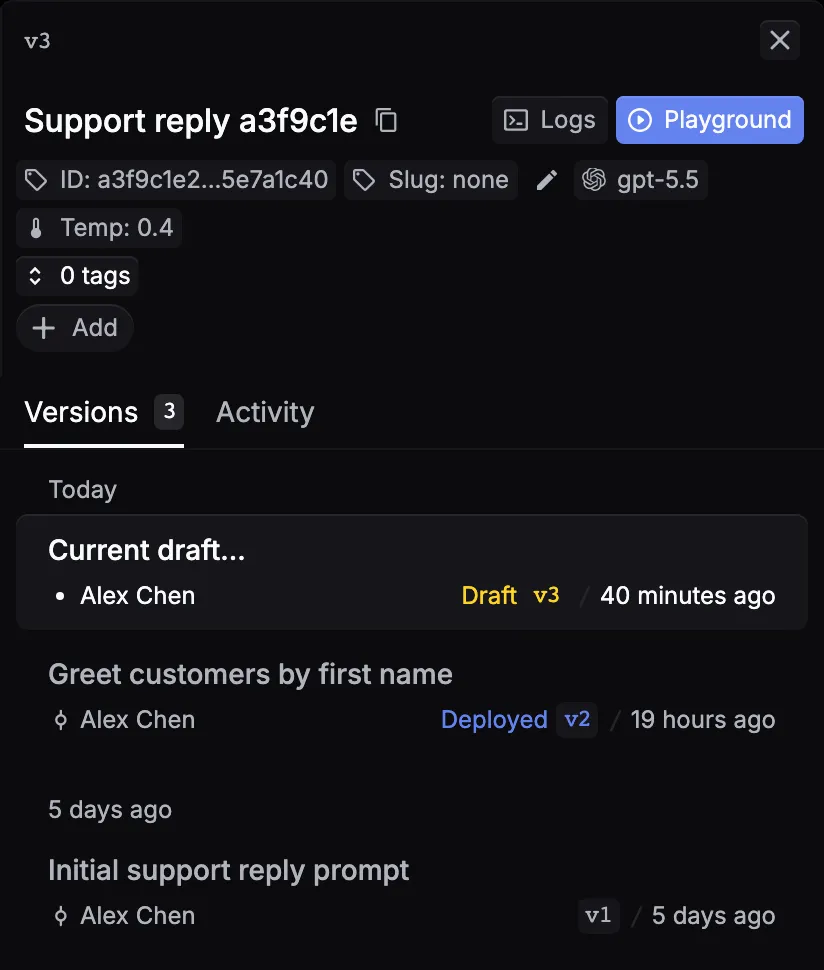
To see every version, click the version count at the top right (like 3 versions), or press H. The live version is tagged Deployed, and edits you haven’t committed show as Draft. To roll back, select an older version and click Deploy.

Choose which version a call uses
Add version to the prompt object:
With "schema_version": 2, the prompt’s saved settings win over the request body, and any messages you send are added after the prompt’s messages. For the older override behavior, patch, and the versioning API, see Advanced configurations.
To return JSON, let the model call functions, or reuse one prompt inside another, see Structured output, Tool calling, and Prompt composition. To compare models before you commit, use the Playground.